Selecting, moving and rotating boards
Three tools put boards where they go: Select V, Move M and Rotate R. Moves land on faces and edges with Snap, stop at other wood instead of passing through it, and can be typed exactly in the inspector.
Updated
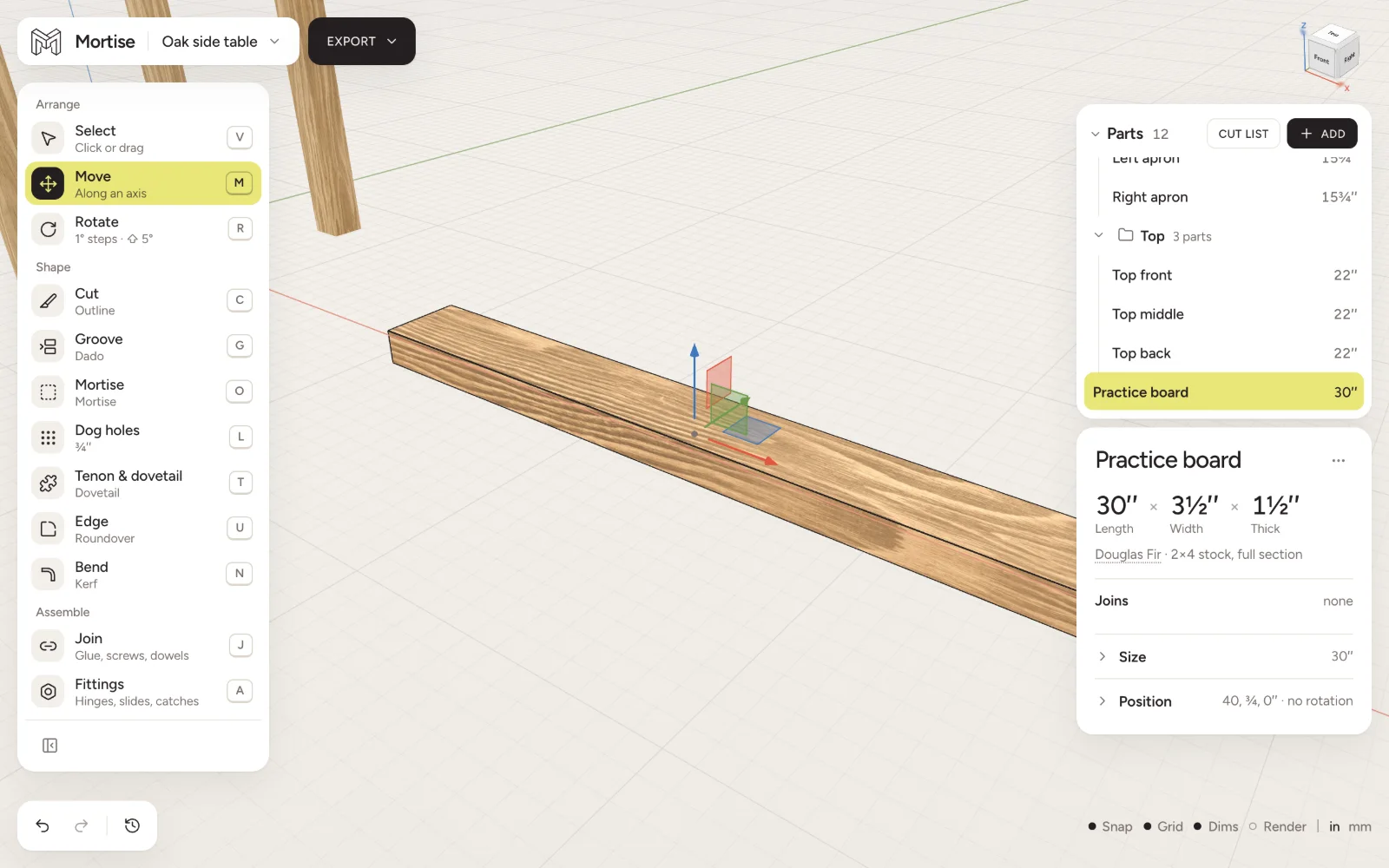
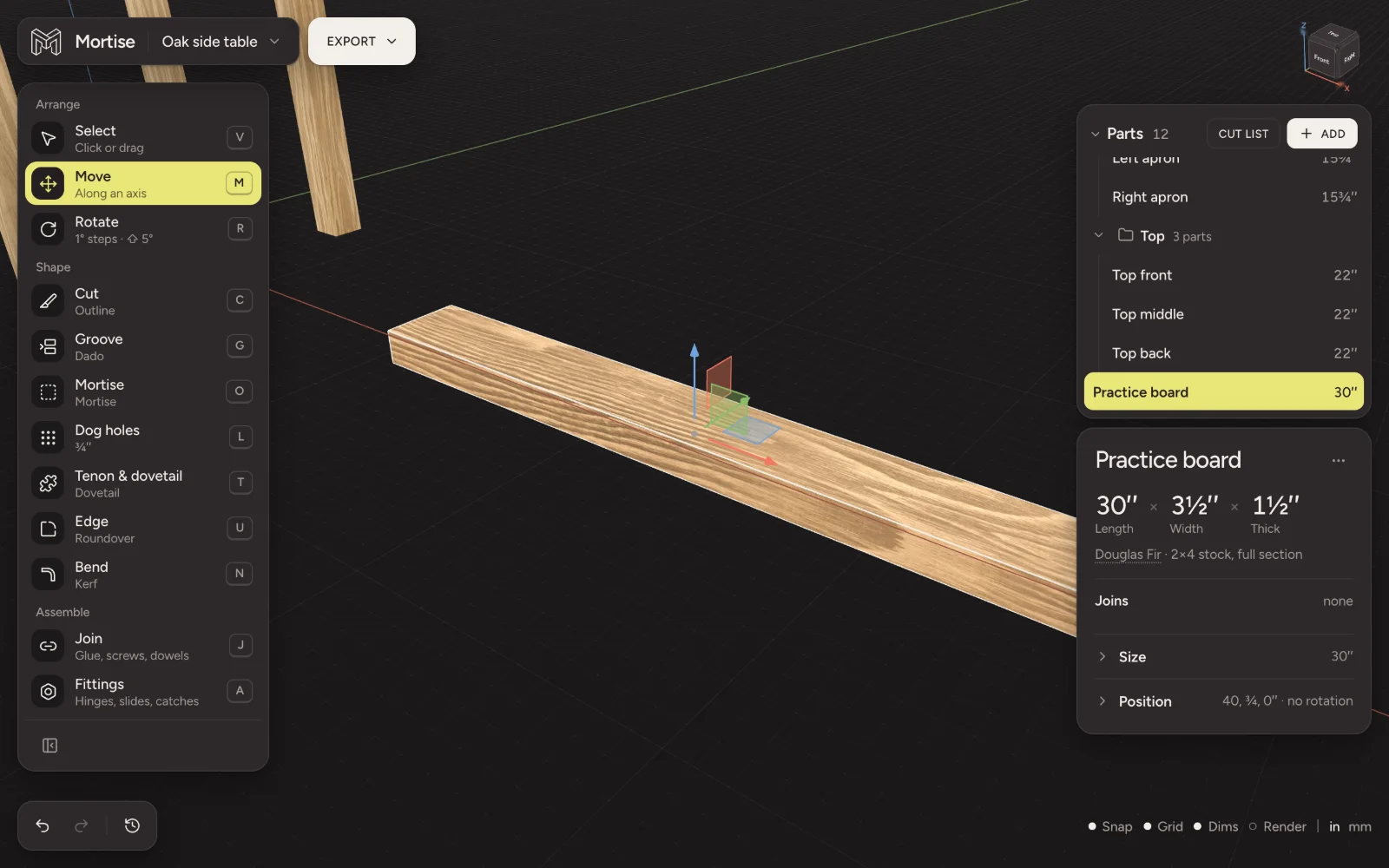
Select
- Click a board to select it. A board in a group selects the whole group; double-click to go one level in, or ⌘-click to reach the board.
- ⇧-click or ⌘-click adds a board to the selection or takes it out.
- Drag from empty space to draw a selection box; hold ⇧ to add to what is selected.
- Click empty space, or press esc, to clear the selection. ⌘A selects everything.
While a cutting tool is in hand, a click picks the one board, not its group, because cuts are made one board at a time.
Move
The move gizmo has an arrow for each axis and a square for each plane. Drag one to move the selection along it. Boards fastened to the selection come with it, outlined as they go.
- With Snap on
- The selection pulls onto nearby faces, centre lines, edges and the floor.
- With Snap off
- Moves still land on a 1/64 inch or 1 mm mark.
- Holding ⇧
- Moves step a whole inch, or 10 mm.
Wood cannot pass through wood. Drag a board into another and it stops on the face and slides along it, and the status line names the board in the way.
When you let go nothing falls. Mortise says whether the board rests on something, is in mid-air, or would tip. Rest on what is below in the inspector drops it onto the wood or floor beneath.
Drag a copy
Hold ⌥ while you drag a gizmo to pull out a copy. The readout shows the gap to the original. Joins between the copied boards come with them.
Nudge with the keys
- Nudge 1/64″ or 1 mm
- arrow keys
- Nudge 1″ or 10 mm
- ⇧ + arrow keys
- Raise · Lower
- Page Up Page Down
With Move in hand, the arrow keys follow the view: left is left on screen. With Snap on a nudge stops at the floor.
Rotate
The rotate gizmo is three rings, one around each world axis. Drag a ring to turn the selection in 1° steps, or 5° with ⇧. The turn since you pressed shows beside the ring. With Snap on, a face that comes within 2° of flush with a neighbour catches flush. A turn that would push into other wood is undone, and the status line says what was in the way.
Typing a position
The inspector’s Position section has Centre X, Height Y and Centre Z, and Rotation about each axis. Drag a value, step it with the arrow keys, or type it. A typed value is kept exactly as typed. Edit placement opens all six together.
Height is measured from the floor. Wood may sit below it: the floor is a guide, not a wall.
Duplicate and delete
- Duplicate
- ⌘D
- Delete
- Del
- Rename
- Enter
Questions
- How do I stand a board up in Mortise?
- Select it, press R and drag the ring that turns it upright 90°, or type 90 into one of its Rotation fields in the inspector.
- Why does my board stop when I drag it?
- It has met another board. Wood cannot pass through wood, so it stops on the face and slides along it. Move it round, or take the other board out of the way.
- How do I place a board exactly?
- Type its centre and height in the inspector’s Position section. Every typed value is kept exactly.