The parts list, groups and the inspector
The parts list names every board in the project and keeps them in groups that nest, the way a cabinet sits inside a kitchen. The inspector reads the selected wood back to you: its size, its stock, its cuts, what it is fastened to and how it meets its neighbours.
Updated
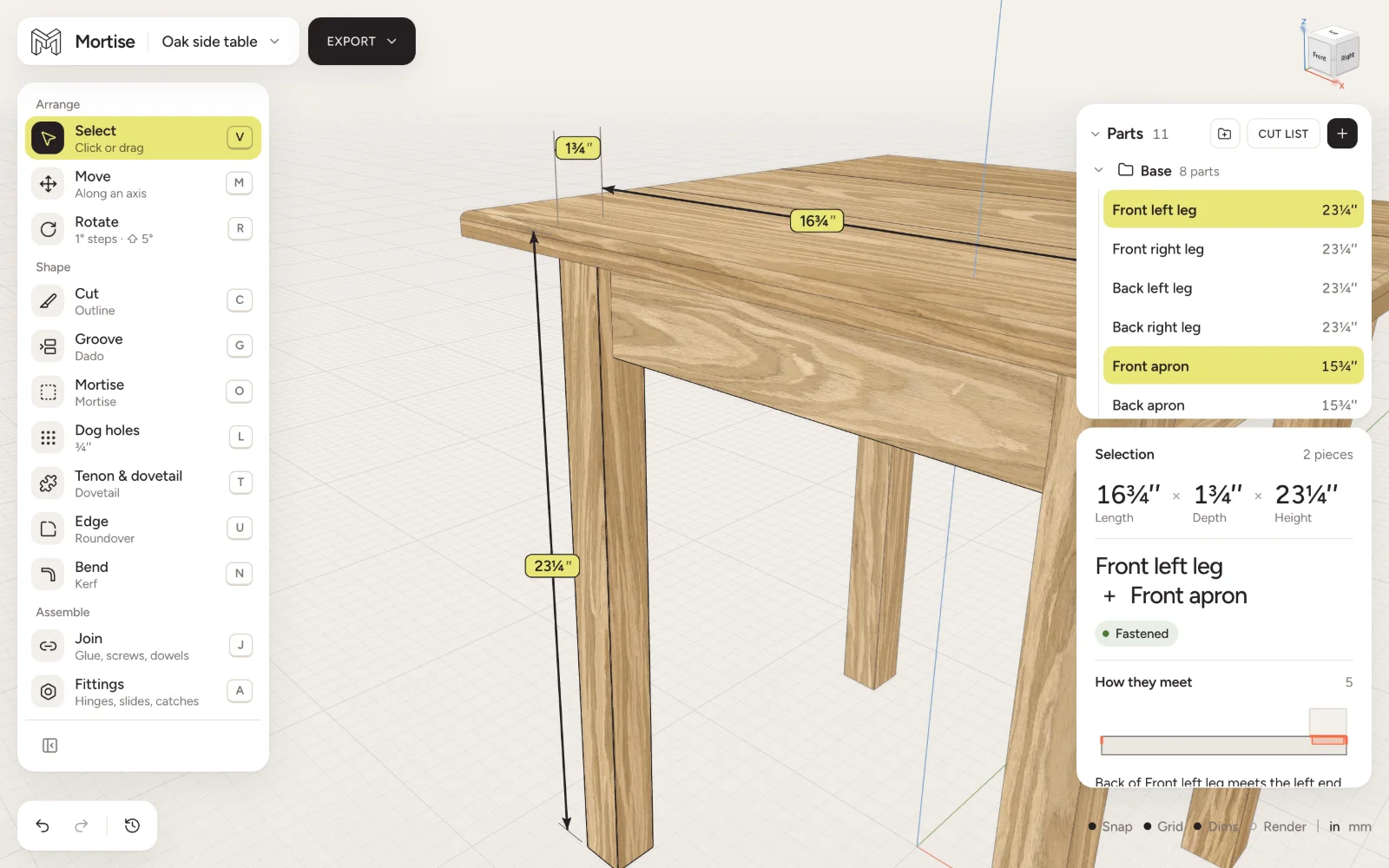
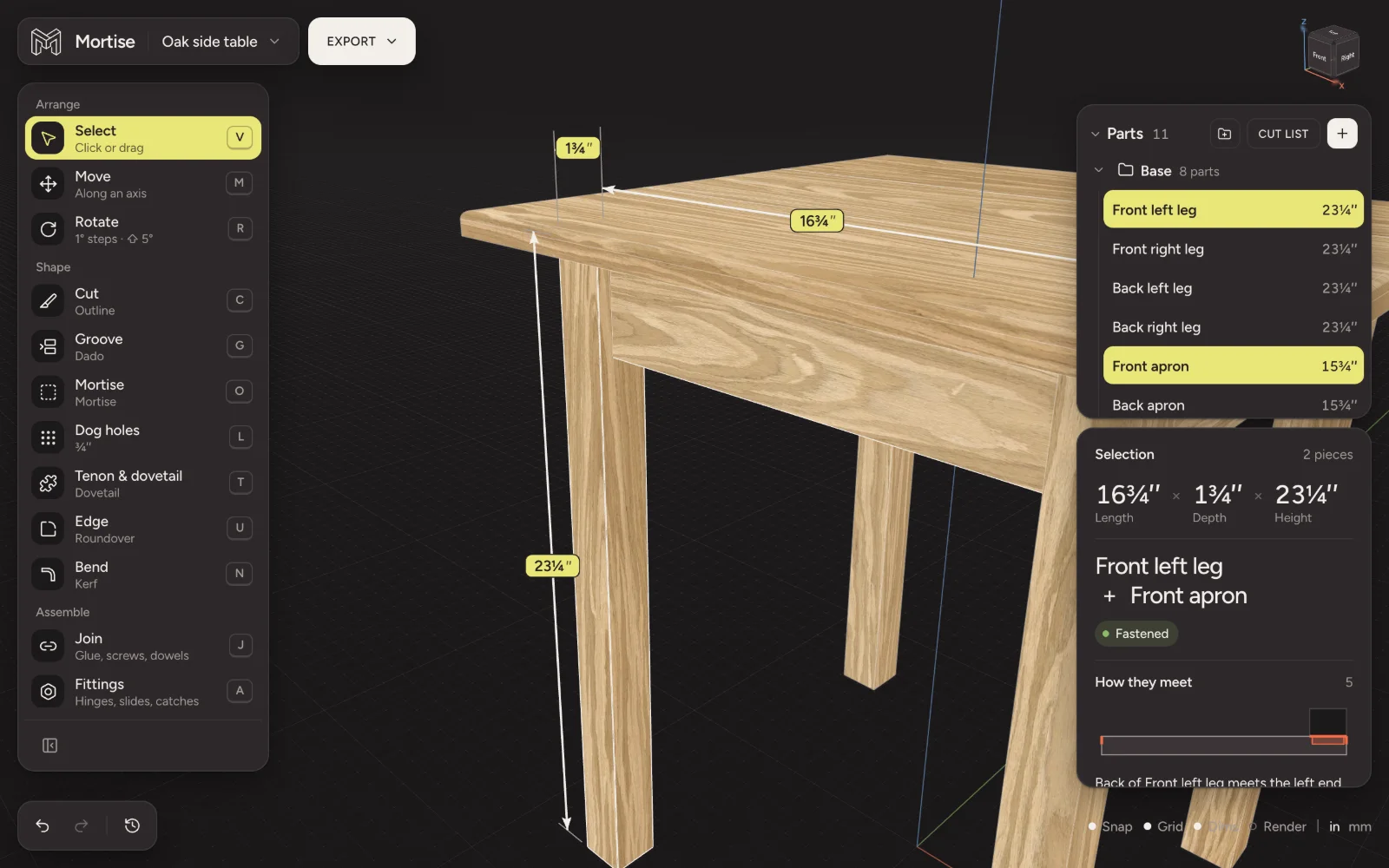
The parts list
The Parts panel lists every board, inside its groups. From its header you add stock (Add) and open the Cut list.
- Click a row to select that board; ⌘-click adds or removes a row; ⇧-click selects a range.
- Double-click a row, or press Enter, to rename it. Tab moves on to the next row.
- Drag rows into or out of groups.
- The eye on each row hides the board; Show all parts brings everything back.
The ⋮ menu on a board has Rename, Duplicate, Hide, Reference only, not bought, grouping and Delete.
Groups
- Group the selection
- ⌘G
- Ungroup
- ⇧⌘G
- Into a group
- double-click, or ⌘-click one board
A new group is named Group 1, Group 2 and so on, with its name ready to type over. Groups nest: a drawer inside a cabinet inside a kitchen. In the view, a click picks the outermost group, each double-click goes one level in, and ⌘-click reaches a single board. A box dragged across the view selects whole groups.
Groups organise; joins hold. Grouping boards does not fasten them, and a join wins over a group when boards are moved.
Reference parts
Mark a board Reference only, not bought for something that is in the room but not part of the build: a wall, a floor, an appliance, an existing cabinet. It stays in the model, is left out of the cut list and the shopping list, and hardware is driven into it, never from it. A bolt into a reference board defaults to a lag screw.
Duplicating
⌘D duplicates the selection, or hold ⌥ while dragging a gizmo to drag a copy. Glue, screws and hardware between boards copied together come with them; a join to a board left behind stays with the original. A whole group copies as a new group with the same name.
The inspector
With nothing selected it asks you to select a piece of wood. While a tool is in hand, the cut’s settings take its place.
One piece of wood
- Its name, and chips for how it stands: Hidden, Touching, not fastened, Fastened, and any fastener problems. Click a chip to open that record.
- Length, Width and Thick, as the wood measures now, after its cuts. A bent board reads its flat length.
- Its species or material, with a note on the wood, and the stock it came from.
- Operations: every cut on the board, in order, each one editable or removable.
- Joins: each join with its fastener, count, length, gauge, inset, which board it is driven from and how far it bites into the other.
- Size, while the board is still uncut stock, and Position: centre and height, rotation, Edit placement and Rest on what is below.
Two or more pieces
The selection’s overall length, depth and height, then How they meet: a sketch and a reading of the angle between the boards, which faces are flush, how far one sits in from the other’s edge, the gap or the overlap, and whether they are fastened. With three or more pieces each touching pair has its own card.
The calculator
Every number in the inspector has a calculator glyph. It opens a keypad beside the field for sums with fractions and units, such as half of 30½ inches less a ¾ inch board. See Units, fractions and typed math.
Questions
- How do I keep a wall or an appliance out of the cut list?
- Mark the board Reference only, not bought from its ⋮ menu. It stays in the model but is not cut or bought.
- Do groups glue boards together?
- No. Groups only organise the parts list and selection. Fasten boards with a join.
- How do I select one board inside a group?
- Double-click to go one level into the group, or ⌘-click the board.