Getting started with Mortise
Mortise is a woodworking app for designing furniture, and it runs in a web browser at woodworking.app. You draw a piece of furniture the way you would build it: real boards of real stock, cut with real operations, joined with real hardware. This page takes you from signing in to your first cut list.
Updated
What you need
A current desktop browser with WebGL 2 (Chrome, Edge, Safari, Firefox or Arc) and an email address. There is nothing to install. A trackpad or a mouse with a wheel both work; see Moving around the 3D view for how each one drives the view.
Your projects are saved to your Mortise account as you work, so you can close the tab, open another computer and carry on where you left off.
Sign in
- Open Mortise and press Open Mortise, or go straight to the sign-in page.
- Type your email and press Email me a link. There is no password.
- Open the email called “Sign in to Mortise” and press Sign in. The link works once, on this device or any other, and lasts 15 minutes.
- The first time, Mortise asks what to call you. Type a name or press Skip for now.
Start a project
After you sign in you land on Projects, the list of everything you have drawn. Press New project to open an empty one called “Untitled”. Click its name in the top left corner of the editor to rename it; Enter keeps the name.
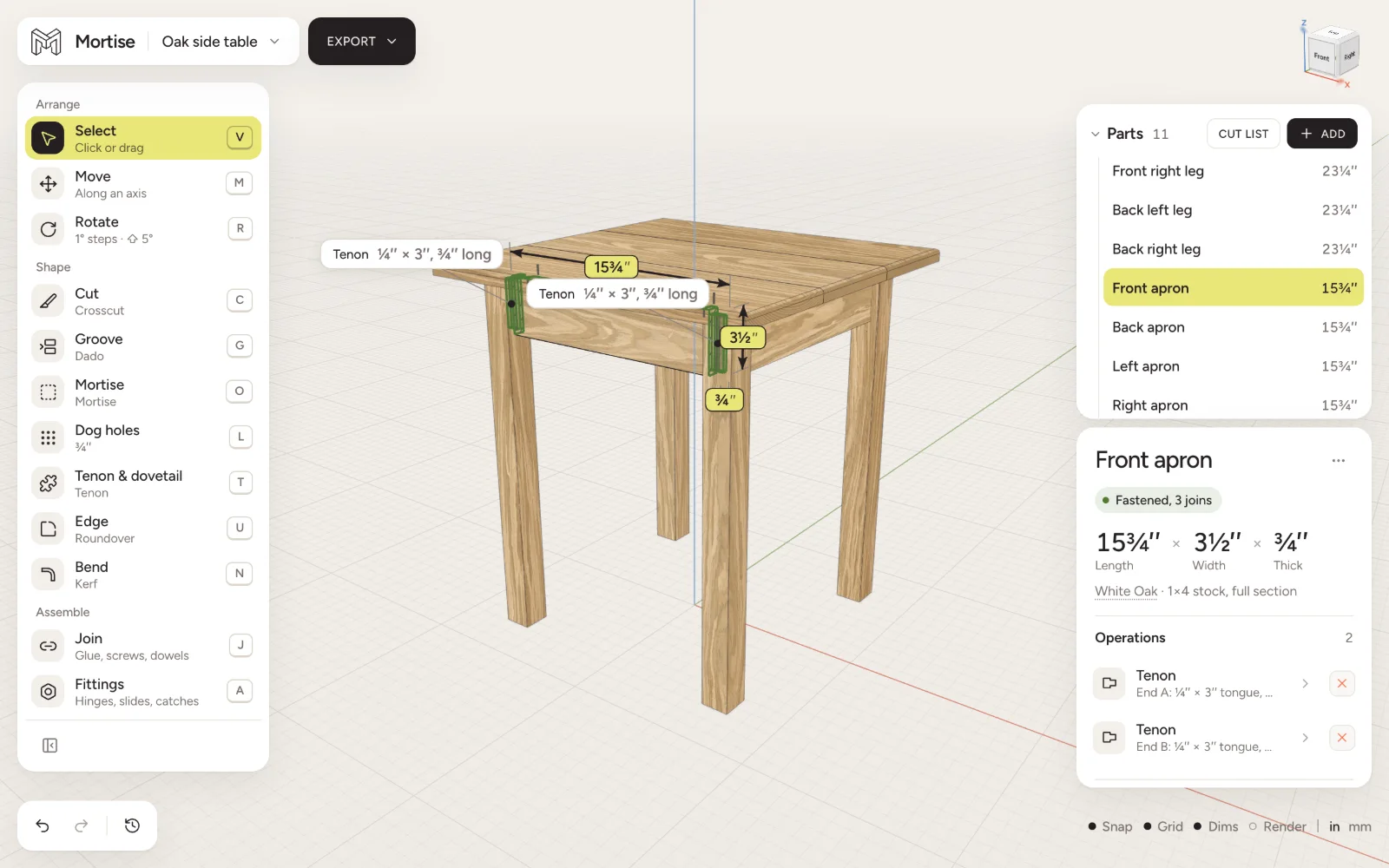
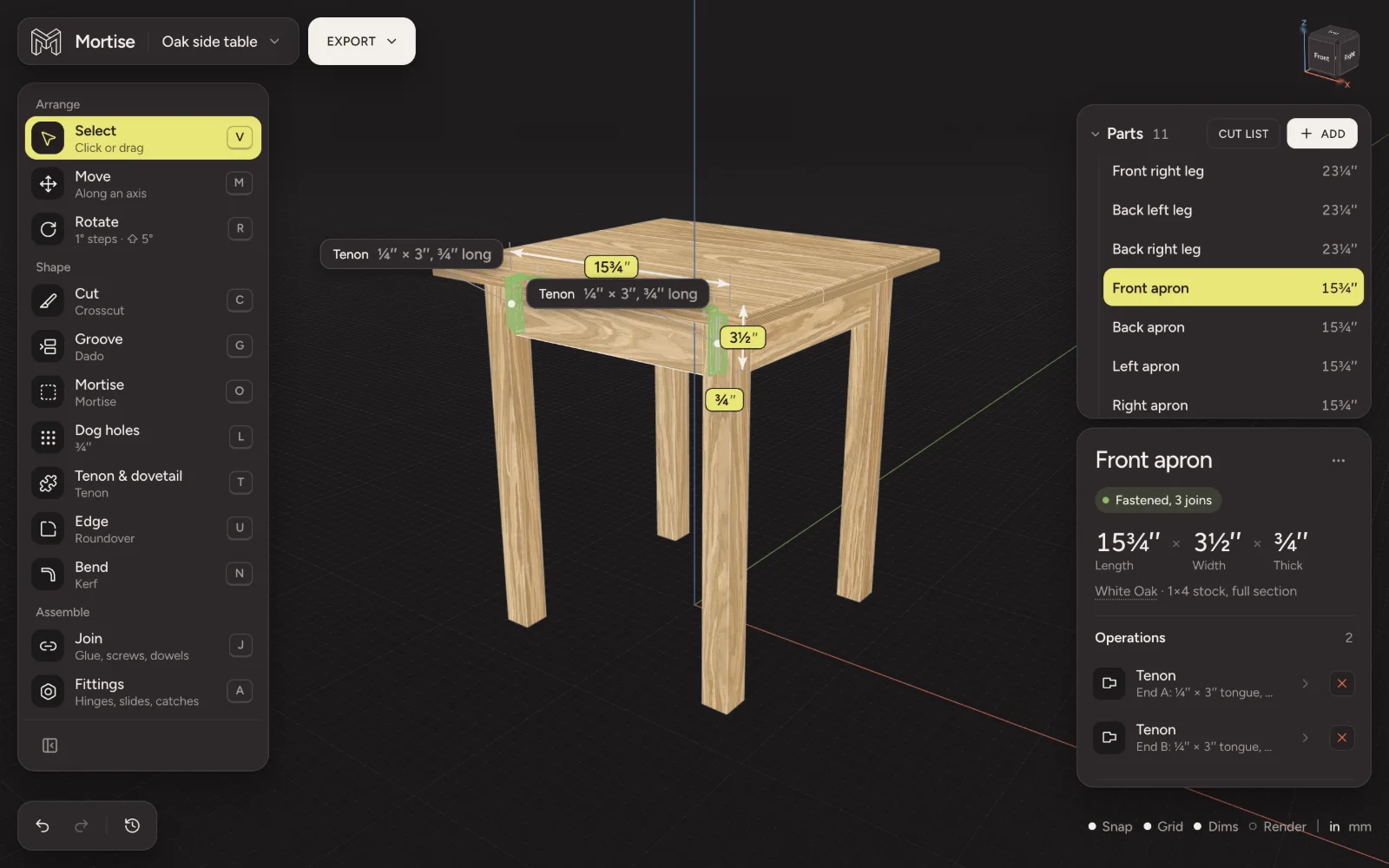
The editor has four parts:
- The tool column
- Down the left side: Arrange (Select, Move, Rotate), Shape (every cut, by family) and Assemble (Join and Fittings). Each row shows the mode it is in and its key.
- The 3D view
- The model, on a measuring grid. Hover a board to see which face or end a tool will work on; click to start.
- The inspector
- Down the right side: the selected board’s size, species and connections, or the settings of the cut you are making.
- The bars
- The option bar at the bottom centre holds the modes and numbers of the tool in hand. Undo, redo and History sit bottom left; Snap, Grid, Dims, Preview and units bottom right.
Add your first board
- In the Parts panel, press Add (the plus).
- Leave Lumber picked, choose a species such as White oak, and a nominal size such as 1×4. The actual size is shown beside it: a 1×4 is ¾ × 3½ inches.
- Set the Length, by typing or with one of the quick lengths, and press Add board.
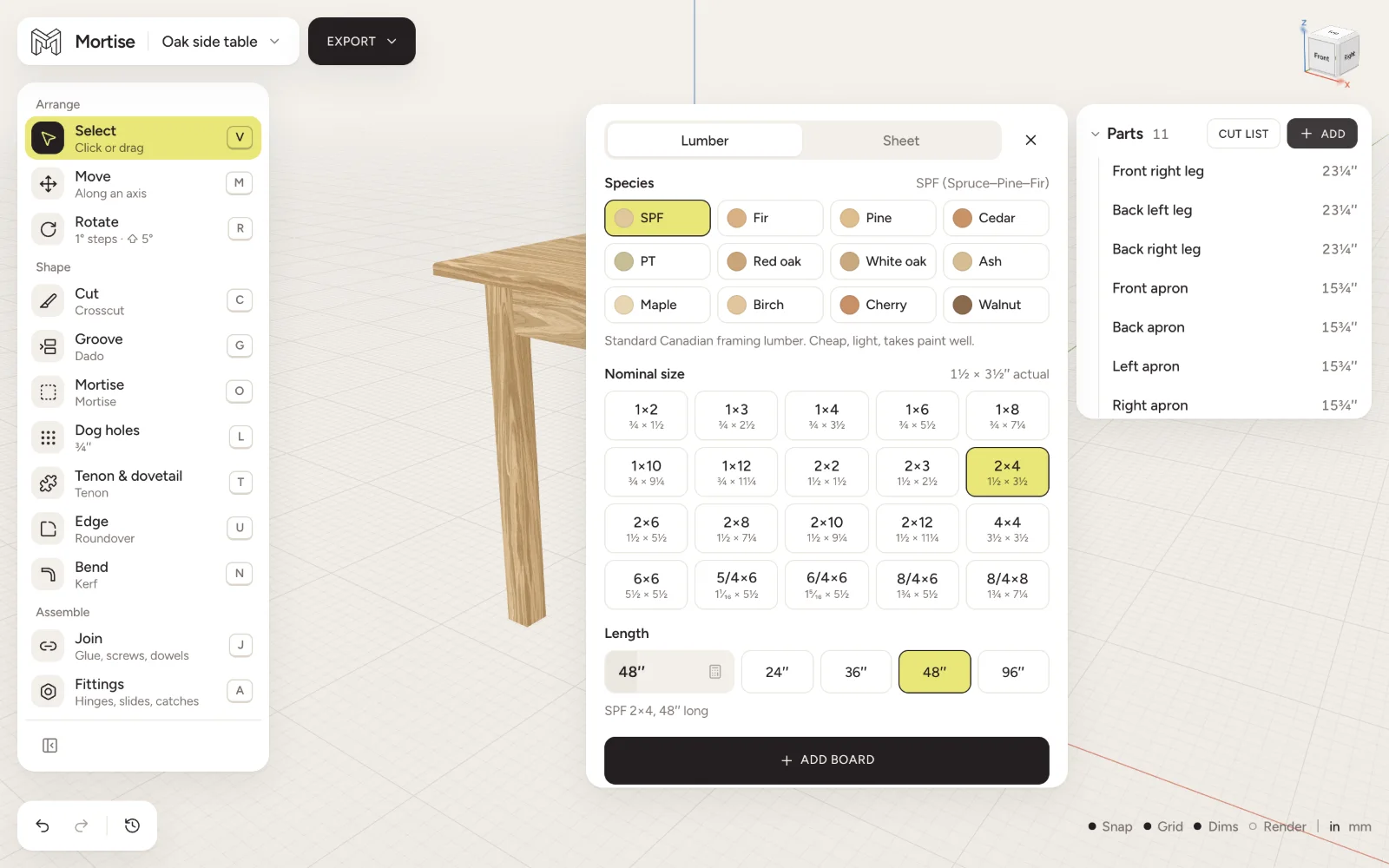
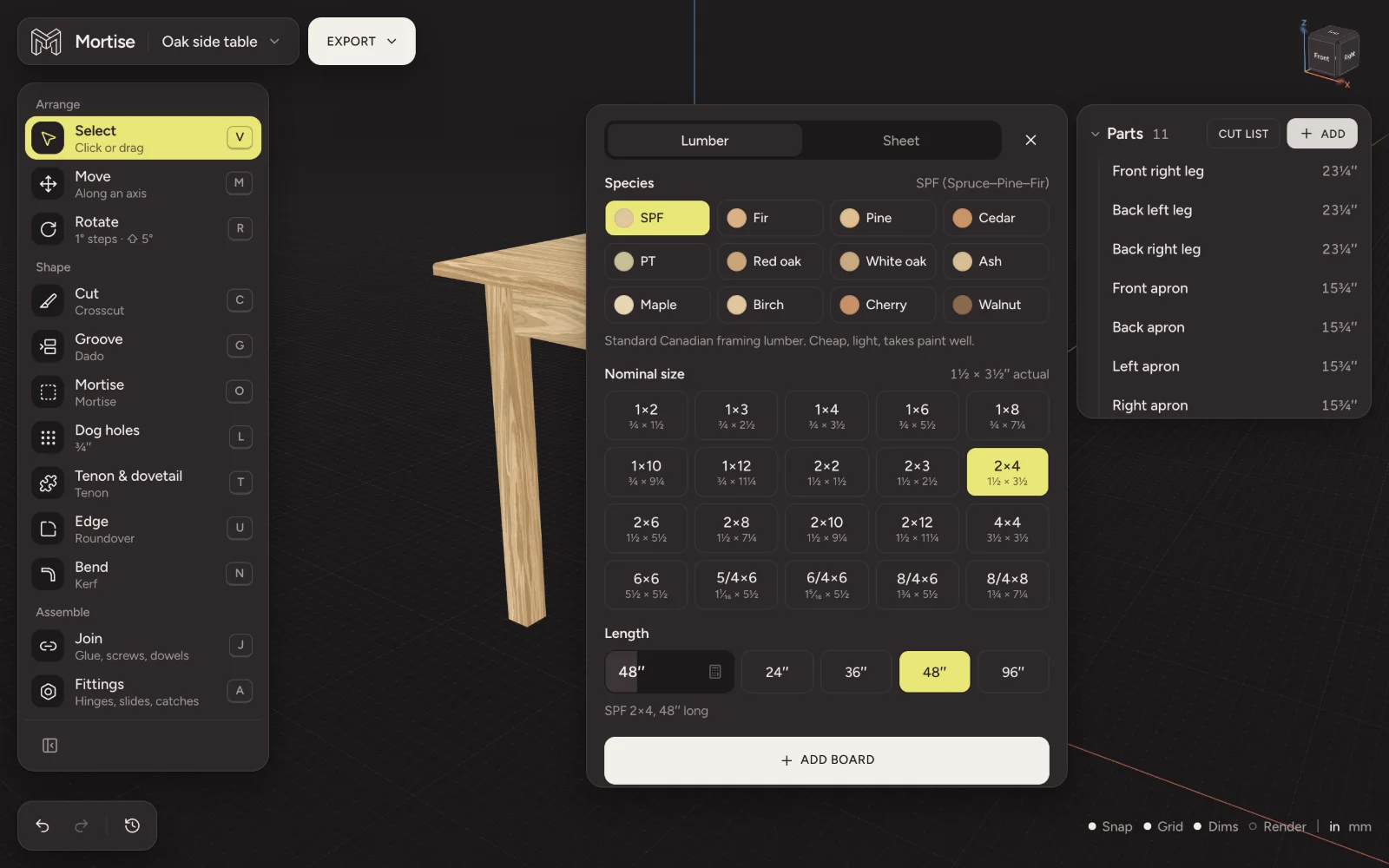
The board appears in the view and in the parts list with a name of its own. Press Enter to rename it. To stand it up or turn it, use Move M and Rotate R; Selecting, moving and rotating boards explains how.
Make your first cut
- Press Z for Crosscut. As you move over the board, the face under the pointer lights up and the saw line follows the pointer.
- Click to start the cut. The waste shows in grey and the option bar shows where the cut falls.
- Type the length you want to keep, drag the cut line, or set a Miter or Bevel angle on the dials.
- Press Enter to apply the cut, or esc to leave the board as it was.
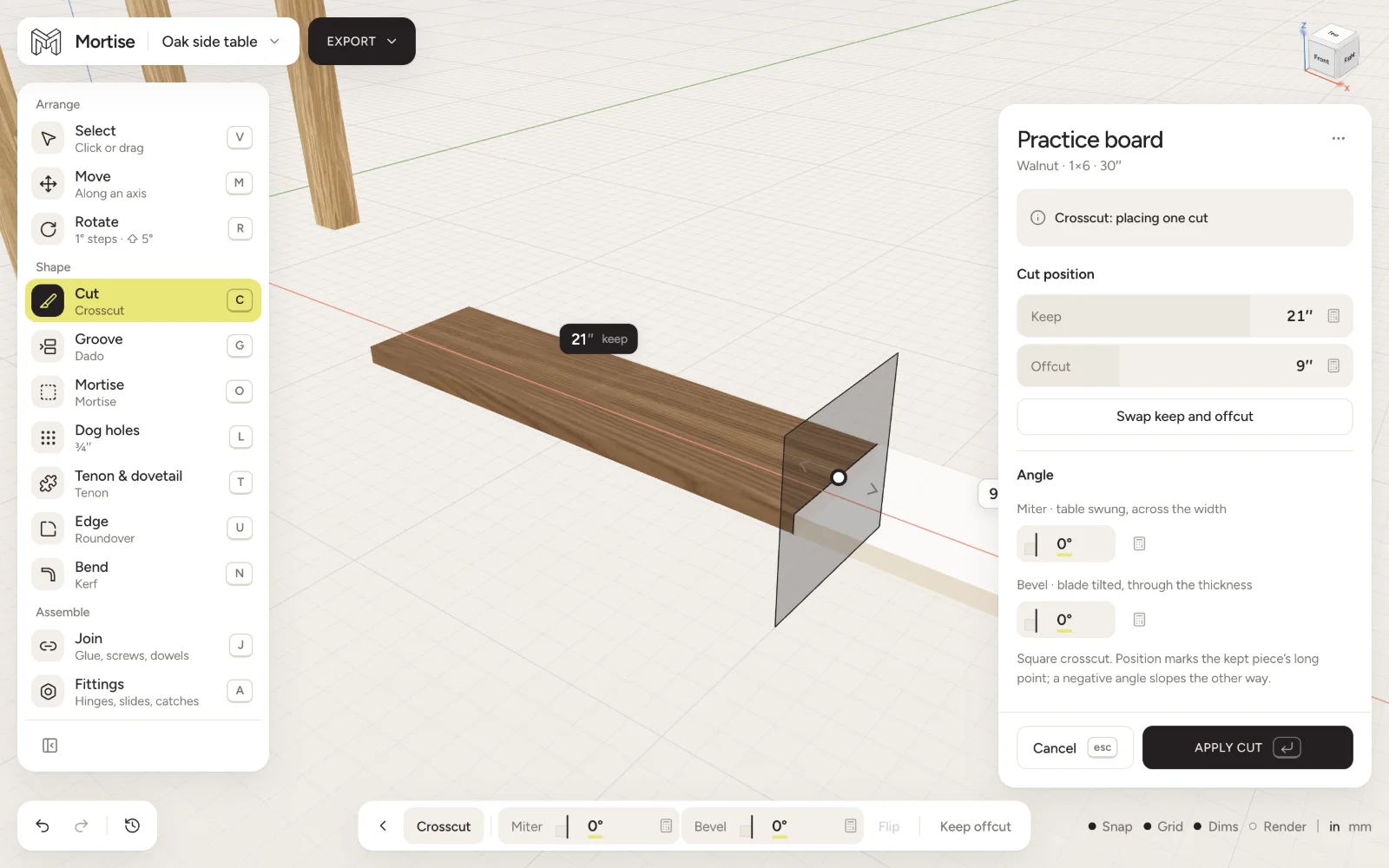
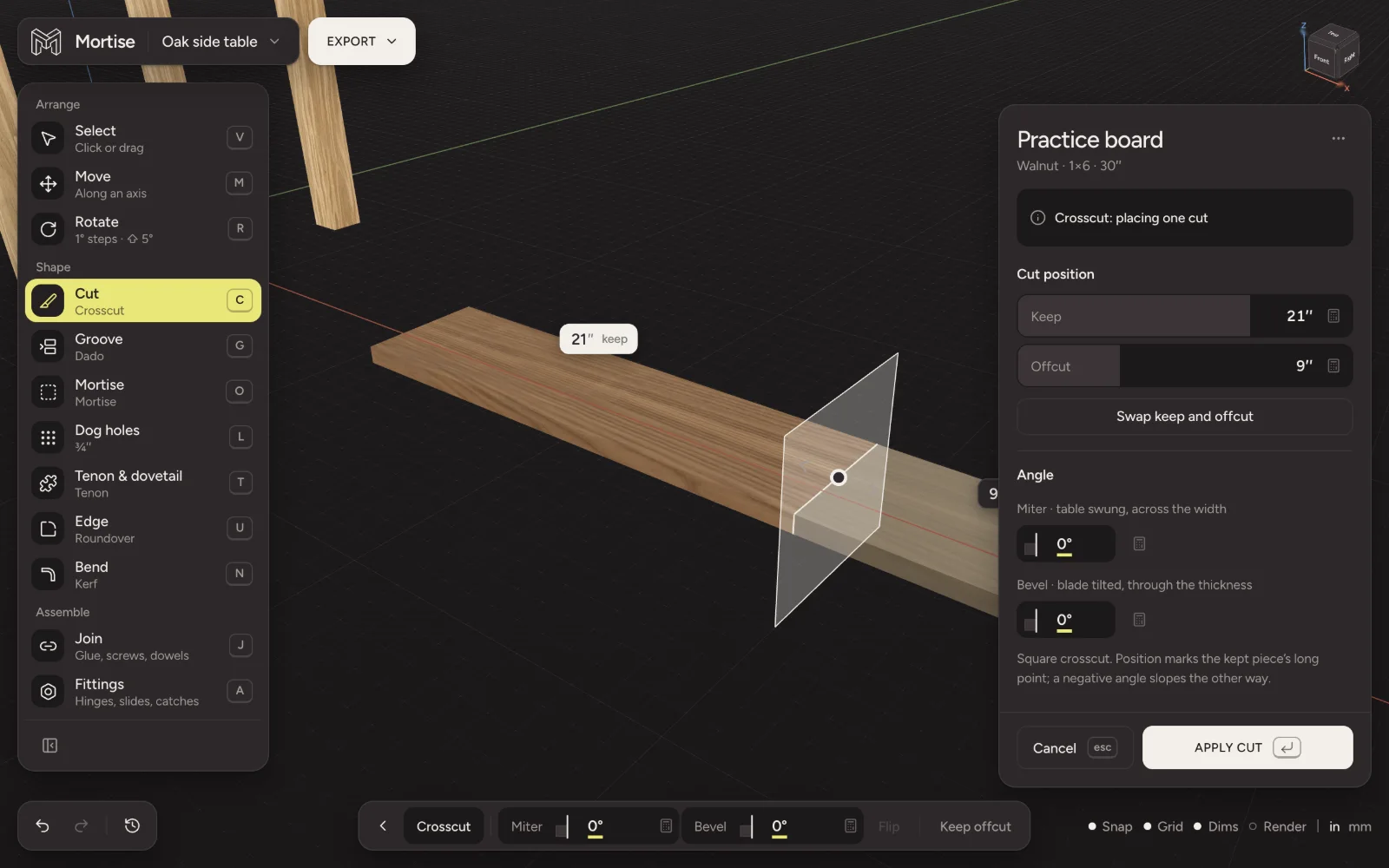
Every cut is a step you can undo with ⌘Z, and every cut stays editable: open the board’s cuts in the inspector, or the step in History, change its numbers and the board is cut again. The pieces of a cut are called Keep and Offcut; Swap trades them.
Join boards and read the cut list
Put two boards where they meet, select one and press J for Join. Pick a fastener (glue, screws, dowels and the rest) and Mortise sizes it to a standard, drills the holes and counts the hardware. Joined boards move as one. See Joining boards.
Press Cut list in the Parts panel at any time. It lists every part to saw, the boards and sheets to buy at standard lengths with board feet and a price, the hardware and the tools. Export in the top bar makes the printable cut sheet. See Cut lists and Printable cut sheets.
How Mortise thinks about wood
- Real stock only. A 2×4 is 1½ × 3½ inches. Wide panels are glued up from boards in the model, not picked from a list.
- One board at a time. A joint is cut on each board separately: tails on one, pins on the other. A board too short for its joinery is recut, not stretched.
- Cuts never add wood. A shape comes from sawing, routing, chiselling or bending a board, as in the shop.
- Boards cannot pass through each other. A move stops at the face of the board it meets. Joinery is the only place two boards share space, because it was cut to.
- The lists come from the model. Nothing is typed into a cut list by hand, so it is always the model you drew.
Questions
- Do I need to install anything?
- No. Mortise runs in the browser. Sign in with an email address and start drawing straight away.
- Does Mortise work on an iPad or a phone?
- Mortise is built for a desktop browser with a trackpad or a mouse. The pages about it read well on a phone, but the editor needs the room and the pointer of a computer.
- Can I work in millimetres?
- Yes. Switch in to mm in the bottom right corner. Metric projects use a European yard: planed timber such as 45 × 95 and metric sheet sizes. See Units, fractions and typed math.
- Where are my projects saved?
- In your Mortise account, about a second after each change. The save mark at the end of the bottom left bar says Saved, Saving or Not saved.