Moving around the 3D view
You turn the model round, slide it and come in close with the same hand you use for everything else on a computer. Mortise reads a trackpad and a wheel mouse differently, and tells them apart by itself.
Updated
With a trackpad or a Magic Mouse
- Orbit
- slide with two fingers
- Pan
- ⇧ + slide
- Zoom
- pinch, or ⌘ + slide
- Orbit, any device
- right-drag
Zoom goes toward the wood under the pointer, so point at the joint you want to see and pinch. ⌃ + slide zooms too.
With a wheel mouse
- Orbit
- right-drag
- Pan
- ⇧ ⌘ + right-drag, or middle-drag
- Zoom
- turn the wheel
On any device, hold Space and drag to pan.
The Mouse setting
The project menu (the chevron beside the project’s name) has a Mouse setting with three choices. It is remembered in this browser.
- Auto
- Tells each scroll apart: a wheel zooms, a two-finger slide orbits. The default.
- Trackpad
- Every scroll is a slide: it orbits, ⇧ + slide pans, ⌘ or ⌃ + slide or a pinch zooms.
- Wheel
- Every scroll zooms; right-drag orbits and ⇧ ⌘ + right-drag or middle-drag pans. Pick this to drive a Magic Mouse like a wheel mouse.
What the view turns around
An orbit turns around the model’s centre, or around the wood at the centre of the screen after you have zoomed or panned toward it. A small dot marks the pivot while the view turns and fades when it stops. Press F to frame the whole model again, which also resets the pivot.
Named views and the view cube
The cube in the top right corner shows which way you are looking. Click a face, an edge or a corner to fly to that view; drag the cube to orbit.
- Frame everything
- F
- Top · Bottom
- ⌘↑ ⌘↓
- Left · Right
- ⌘← ⌘→
The front of a piece faces you in the Front view. Heights and alignments read true in the straight-on views.
Measuring between boards
Select a board, hold ⌥ and point at another. Mortise draws the gaps between them as a staircase along the three axes, a dashed line for the straight distance, and where boards overlap, the shared volume and how deep it goes. Nothing changes; let go of ⌥ and the readings go.
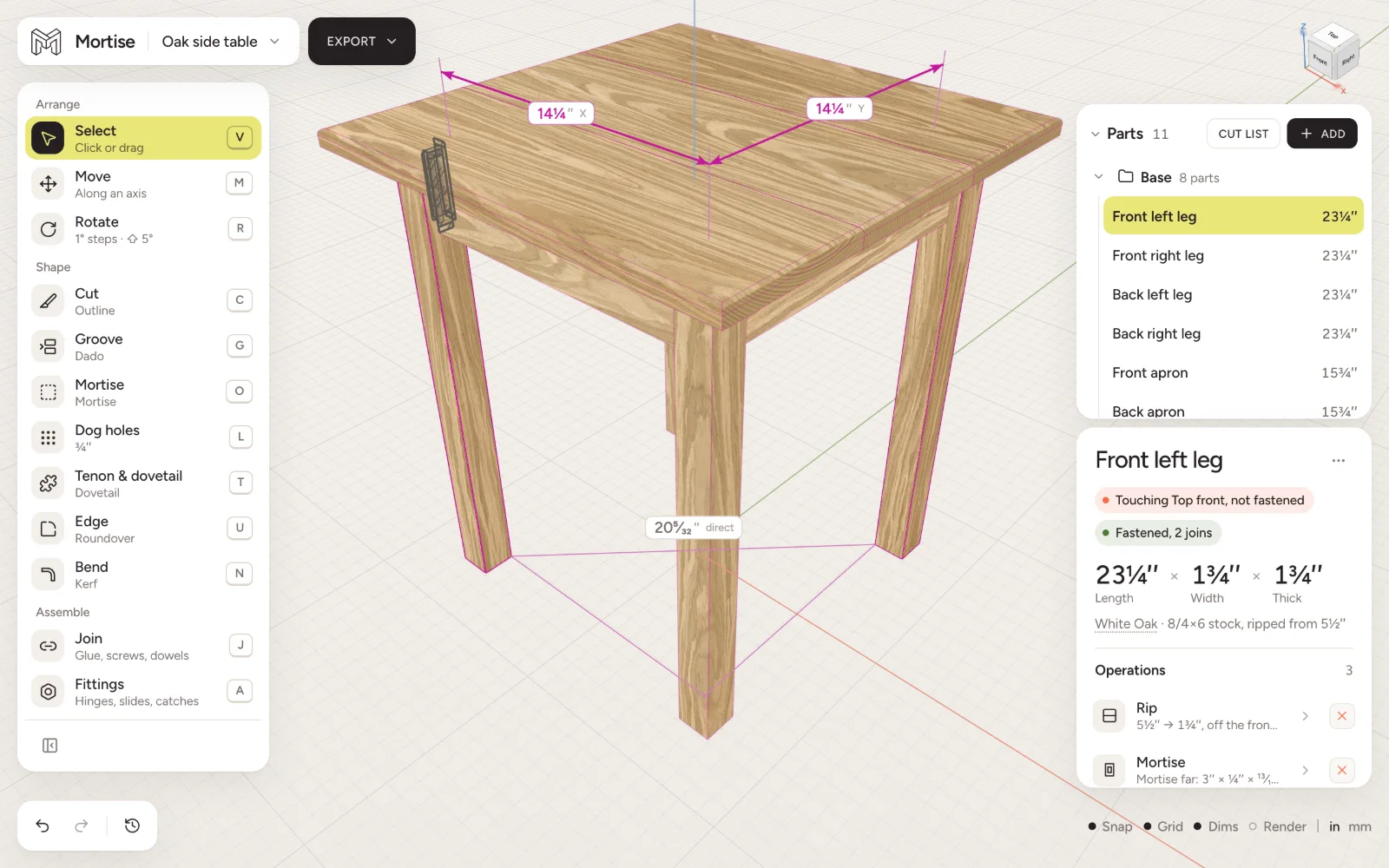
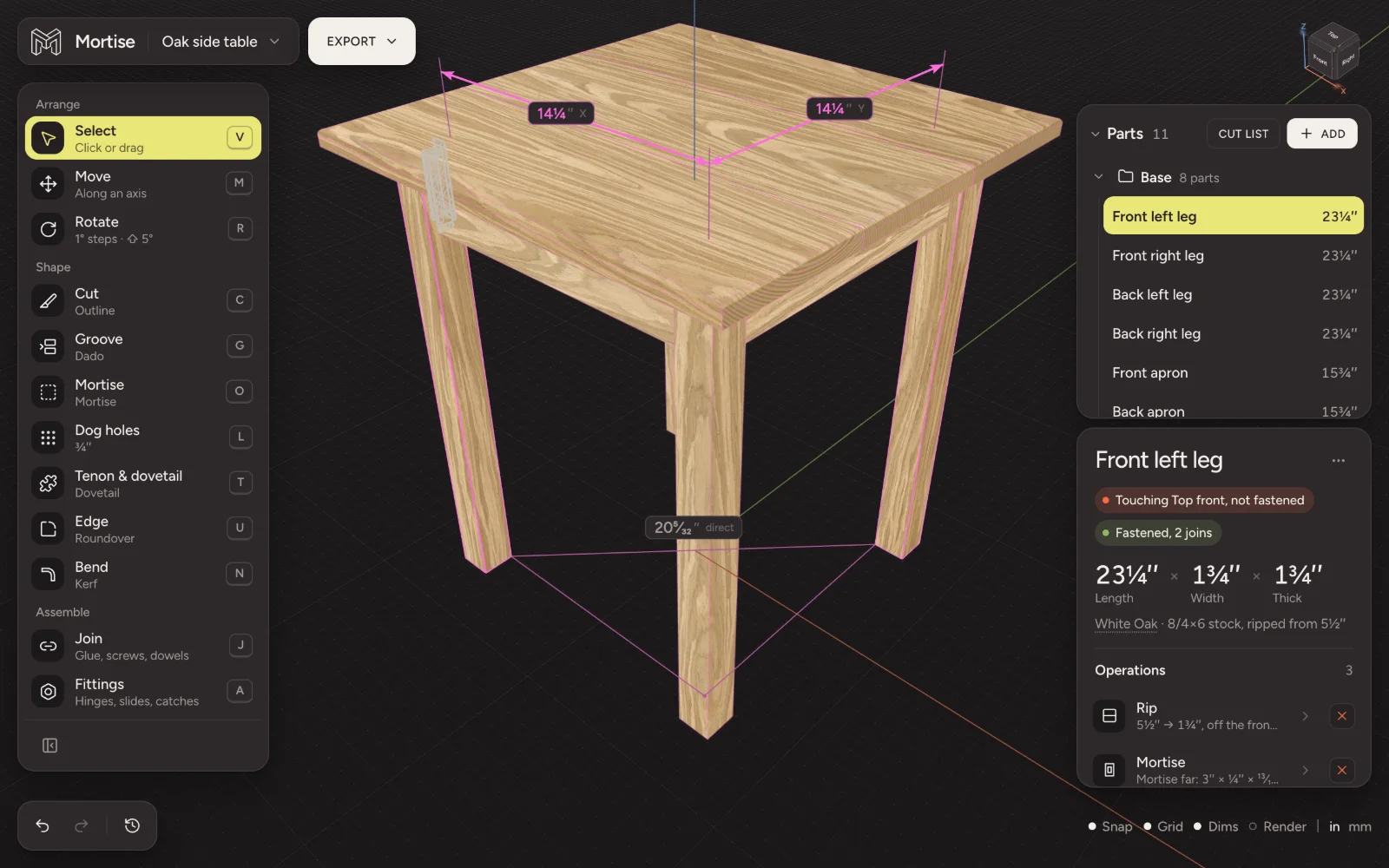
Snap, grid, dimensions and preview
The bottom right corner holds the switches for what is drawn over the model:
- Snap S
- Drags land on faces, edges, centres and the measuring grid.
- Grid X
- The floor grid: a line every inch and a heavier one every foot, or every 10 mm and 100 mm in metric.
- Dims I
- Sizes and callouts drawn on the wood: length, width and thickness on real edges.
- Preview
- Window light, soft shadows and a satin finish on the wood, for looking at the piece while you keep working. It is off each time a project opens. For a finished picture, use Export › Render image.
- in · mm
- The units every reading and field uses.
Questions
- How do I orbit in Mortise with a mouse?
- Right-drag. On a trackpad or a Magic Mouse, slide with two fingers.
- How do I pan?
- On a trackpad hold ⇧ and slide. With a wheel mouse hold ⇧ ⌘ and right-drag, or drag with the middle button. Holding Space and dragging pans on any device.
- My scroll wheel orbits instead of zooming. How do I fix it?
- Open the project menu and set Mouse to Wheel. Every scroll then zooms.
- How do I get the whole model back on screen?
- Press F to frame everything.